
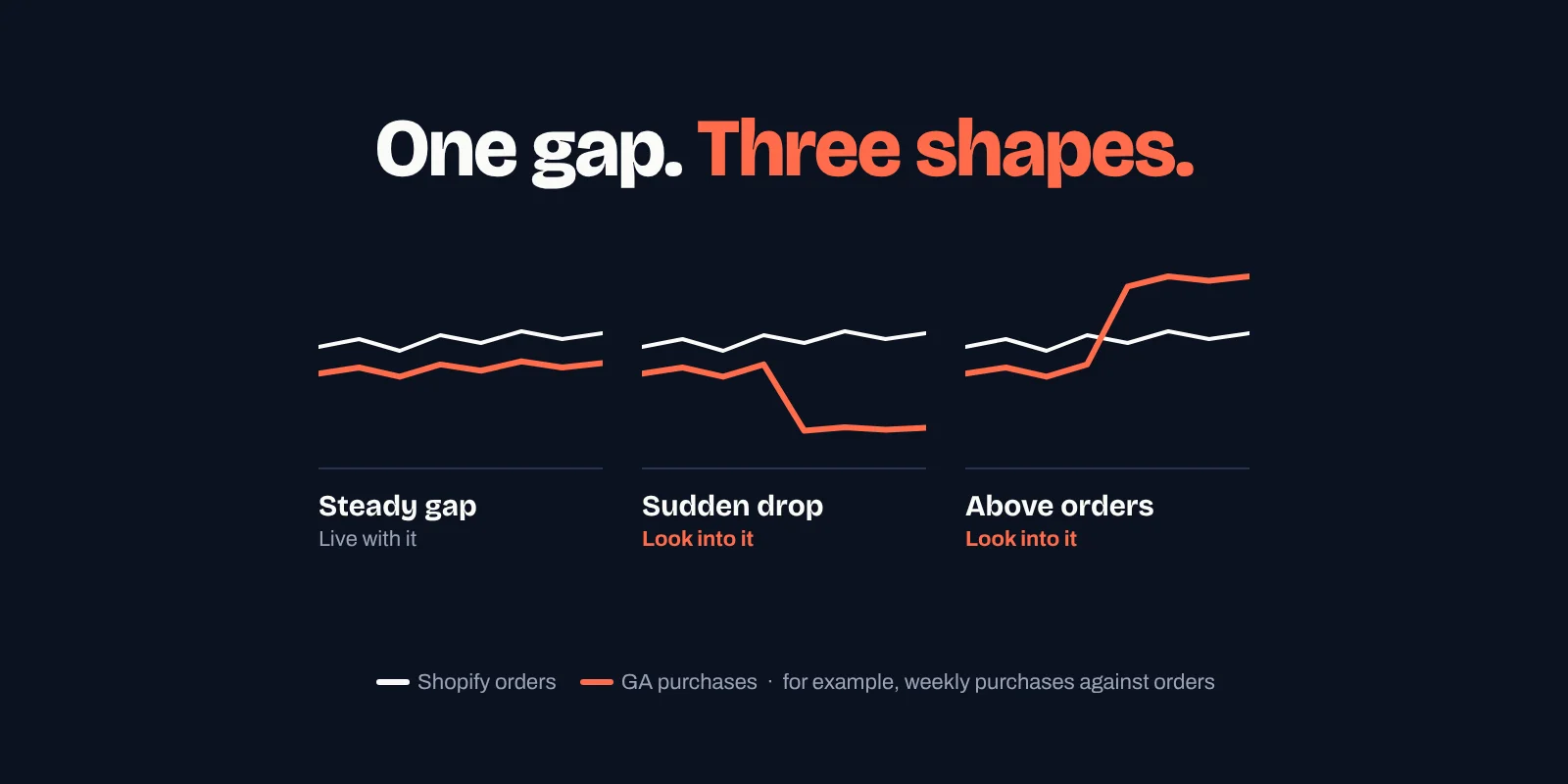
Google Analytics has counted fewer purchases than your Shopify orders since you connected it. A steady gap is one to live with. What deserves your attention is the week the gap suddenly moves. The first place we’d look then is your tags, the snippets of code that tell Google what shoppers do in your store.
The two never match because they count in different places. Shopify records an order when the shopper pays, so your order count is the record. Google Analytics only knows what its tags report from the shopper’s browser, and a shopper with cookies turned off, or a blocker on Google Analytics, is hidden from it. That’s the cost of counting in a browser, and it’s why a gap that holds steady doesn’t mean anything is broken.
Shopify Analytics vs Google Analytics: take your totals from Shopify
Report sales and average order value from Shopify, whatever Google Analytics shows. Shopify counts orders and sales without relying on sessions. When it changed how it counts sessions in September 2026, orders, sales and customer counts stayed as they were.
Google Analytics earns its place on a different question: where those orders came from. We’d use it to compare landing pages and campaigns with each other, and leave its totals alone. Your ad platforms count sales by their own rules as well, which gives you a third total. Our post on what a good ROAS is shows how to check that one against your Shopify sales.
Your order count is the record. Google Analytics tells you where those orders came from.
Where a cookie banner asks first, Google Analytics sees fewer shoppers
If you sell where consent is required, usually the European Economic Area and the UK, shoppers have to be asked before tracking starts. Turn on Shopify’s own cookie banner for those regions, under Settings > Customer privacy. Shopify then collects non-essential data only after a shopper agrees, so Google Analytics sees fewer of the shoppers there and you should expect a wider gap than in your other markets. Your order count doesn’t change.
Google’s tags learn each shopper’s answer from the banner, through a setting called consent mode. When a shopper says no, the tags save no cookies in their browser. They still send Google a signal with basic details such as a timestamp and the page the shopper came from. Consent mode needs a banner to tell it each answer. Once Shopify’s is on, consent mode switches on by itself through the Google & YouTube channel, so there’s nothing more for you to set up.
How many shoppers say yes varies. In a 2026 US experiment with 563 Chrome users, 61% to 65% accepted all cookies on a plain banner. Those people weren’t Shopify shoppers, so the figure gives you a sense of scale and no more. In regions that don’t require consent, such as the US, Shopify’s banner is off by default. The gap there comes from things like blockers and the way each tool counts.
A sudden move in the gap is the one to look into
How big your gap runs matters less than whether it holds steady. The number we’d keep an eye on is Google Analytics purchases as a share of your Shopify orders, week by week. Count online store orders only, because an in-person sale never loads a page Google Analytics could see. After a month you’ll know your normal share. Expect it to dip in the week a cookie banner goes on, as the shoppers who decline go uncounted. A fall well below normal in any other week points to something that changed in how purchases reach Google Analytics.
When that happens, the first thing we’d rule out is your purchases going somewhere you don’t look. The Google & YouTube channel sends them to one Google Analytics property, the set of reports they land in, and Sales channels > Google & YouTube shows you which. If its measurement ID, the code starting with G-, doesn’t match the property you read, disconnect it and choose yours. Private mode, which keeps your store behind a password, is the other quick check, because Google Analytics tracks nothing while it’s on. If neither explains the fall, look at what changed in your theme or checkout that week.
The opposite shape, more purchases than orders, has more than one possible cause. We’d rule out a duplicate Google tag first, since a second tag can count the same activity again.
On a coaching call we go through your Google Analytics and Shopify reports with you, and decide what each one should answer.
Shopify’s Google & YouTube channel connects Google Analytics with no code in your theme
Google & YouTube is the sales channel that links your store to Google. Connect Google Analytics through it and Shopify tracks certain shopping activity for you automatically, purchases included. You don’t add any tracking code to your theme, and you don’t need a Google Merchant Center account, the one for listing products on Google. Plenty of setup guides tell you to paste a Google tag into your theme anyway. We wouldn’t: a tag pasted in beside the channel is a duplicate.
- Open the channel. In your Shopify admin, go to Sales channels > Google & YouTube. If it isn’t there, install it and connect your Google account first, because the property list comes from that account.
- Start the setup. In the Looking only to set up Google Analytics 4? banner, click Get started.
- Pick your property. Choose it under Connect a Google Analytics property, or click Create new if you don’t have one.
- Connect it. Click Connect.
- Make your store public. Google Analytics can’t track shoppers while your store is in private mode, so go to Online Store, click Private, select Public and click Update.
Done
Data can take 24 to 48 hours to come through, so start tracking your weekly share the week after.
Remove the Google tags you added before the channel
If you set Google Analytics up by hand before moving to the channel, the tags you added then keep running beside it. Google says duplicate tags like these can cause duplicate tracking and inaccurate data, and can hurt how your ad campaigns optimise. Clear them out once the channel is running.
Google Tag Manager, a container that loads several tags from one place, comes out too if it’s loading your Google tags. It can’t be set up through the channel, and Google doesn’t support it inside a Shopify custom pixel. Any other company’s tags inside Tag Manager stop working once it’s gone, which is why they move first.
- Back up your theme. Go to Online Store > Themes, click the three dots beside your current theme and click Duplicate, so you can go back if something breaks.
- Find Google’s code. On the same page, click the three dots, then Edit code. Open
theme.liquid, the file that loads on every page, and search forgtag,GTM-andgoogle-analytics.com. - Move other companies’ tags out of Tag Manager. If you found
GTM-, set up each tag in it that isn’t Google’s through that company’s own Shopify app or sales channel, so it keeps working. - Delete only Google’s code. Remove each snippet from its first line to its last. Tag Manager has two parts, one inside
<head>and one just after the opening<body>that starts with<noscript>, so delete both. Leave Shopify’s own Liquid, such as{{ content_for_header }}, because your store needs it to load. Click Save. - Disconnect pixels that load Google tags. In Settings > Customer events, click Disconnect beside any custom pixel that loads a Google tag or Tag Manager.
- Test one purchase. Go through checkout once with Google’s Tag Assistant, which shows the tags running on each page, and check that your Google tags run only from the channel.
Done
Other analytics tools answer other questions
Google Analytics is one of several analytics tools that work with Shopify, and each answers a different question. Pick by the question you keep asking about your store.
For totals you can report: Shopify Analytics
Shopify Analytics is the set of reports built into your admin. It shows sales and orders, and we report every total from it. Every store has it, so it’s the place to start. Its weak spot is sessions, the visits to your store. Each tool defines a visit its own way, so Shopify’s count can differ from another tool’s. That doesn’t touch your totals, which stayed as they were through Shopify’s September 2026 session change.
For where sales came from: Google Analytics
Google Analytics shows which pages and campaigns lead to a sale. That makes it the tool for deciding which landing page to send ad traffic to, or which campaign deserves more of your budget. Most stores start here, and it’s the one we’d set up first. You connect it through the Google & YouTube channel, with the steps above. Its limit is the gap this post began with: it misses shoppers who block it or decline cookies, so its purchases run below your orders.
To see where shoppers get stuck, without code: Microsoft Clarity
Microsoft Clarity shows what shoppers do on a page. A heatmap colours the spots where they click, and a recording replays one shopper’s visit, so you can watch where they get stuck. We’d reach for it when a page’s numbers look wrong and you want to see why. It suits a store with nobody to edit code, because it installs through Microsoft’s Shopify app. If you pasted Clarity into your theme earlier, the app takes that install over. Microsoft’s guide describes checkout tracking for Shopify Plus accounts, so read that part first if checkout is the page you want to watch.
For clicks and recordings in one tool: PostHog
PostHog records each pageview and click as an event, a line in its log of what shoppers did, without you tagging anything. That’s called autocapture. It has recordings and heatmaps too, so the counts and the replays sit side by side. We use it on our own site for all of that, though ours isn’t a Shopify store. It suits a store with someone who can edit the theme, because you add it by pasting a snippet into theme.liquid. Checkout needs a separate custom pixel, because PostHog’s docs explain that Shopify’s checkout pages won’t run whatever code you add. Heatmaps take more work: the same docs use a Cloudflare worker, a small script that rewrites a header Shopify sends. In practice, that part needs someone comfortable editing code.
Whatever you add, Shopify stays the place for your totals. Google Analytics tells you which pages and campaigns sell, and Clarity or PostHog lets you watch where shoppers get stuck.
Checklist
- Sales, orders and average order value come from Shopify, and pages and campaigns from Google Analytics
- Google Analytics runs through Google & YouTube only, sending to the property you read
- The Google tags and Tag Manager you added by hand are gone from your theme and Customer events
- Shopify’s cookie banner is on wherever your markets require consent
- You know your normal weekly share, and a sudden move gets checked that week
A CRO audit checks every page between the ad and the order confirmation, and ranks the fixes by revenue.

A collective of ecommerce veterans with 15+ years across marketing, development and UX. We audit stores, coach teams and build tools for Shopify merchants.