
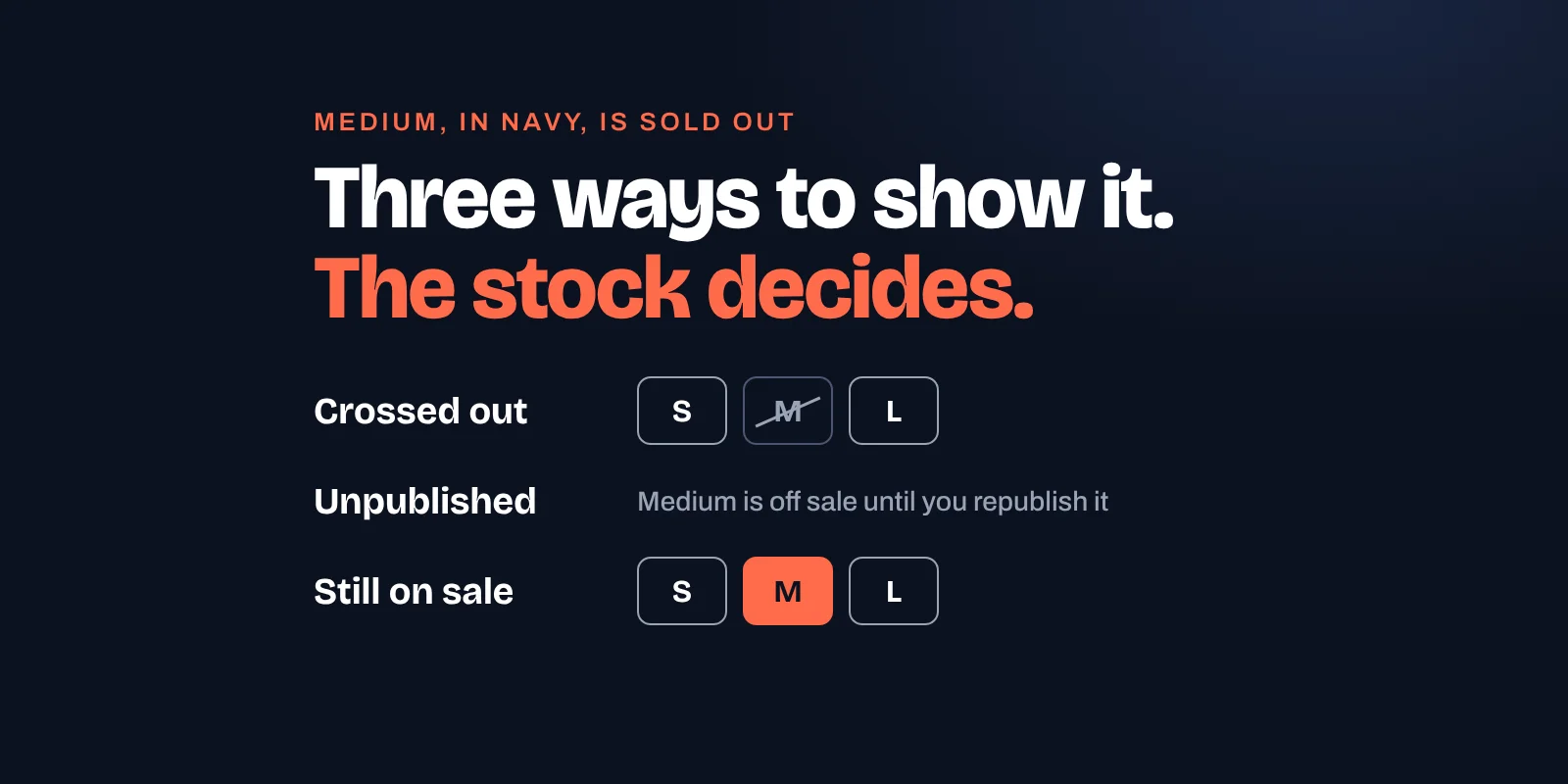
Say your medium size sells out in navy. You can leave it on the page crossed out, take it off the page or keep taking orders for it. Which is right depends on whether medium is coming back, and when.
Each choice decides what the shopper is told, and when. On Shopify, a crossed-out size shows as out of stock on the product page, but the strikethrough can’t say whether it’s coming back. Since May 2026 you can unpublish a single size, which Shopify says hides it. When we tested, it still showed, struck through. Either way, nothing says it’s coming back, and you have to republish it yourself. Shoppers can buy a size you keep selling. Before they pay, tell them it isn’t in stock and when it ships.
So match each size to its stock. If it’s coming back but you can’t say when, leave it crossed out. If it’s gone for good, unpublish it. If you make it to order or know when it arrives, keep selling it, and show the date before the shopper pays.
Pick the state by what the stock is doing
In Shopify, each size in each colour is a variant: medium in navy is one variant. Pick one state per size:
| If the size is | Do this | Where the shopper finds out |
|---|---|---|
| Coming back, no date | Leave it crossed out | Product page |
| Gone for good | Unpublish it | Product page, struck through or missing, depending on your theme |
| Made to order or due on a date | Keep selling it, with a notice | Only from your notice |
If a size is coming back with no date: leave it crossed out
- When it fits: the size is coming back and you can’t promise a date.
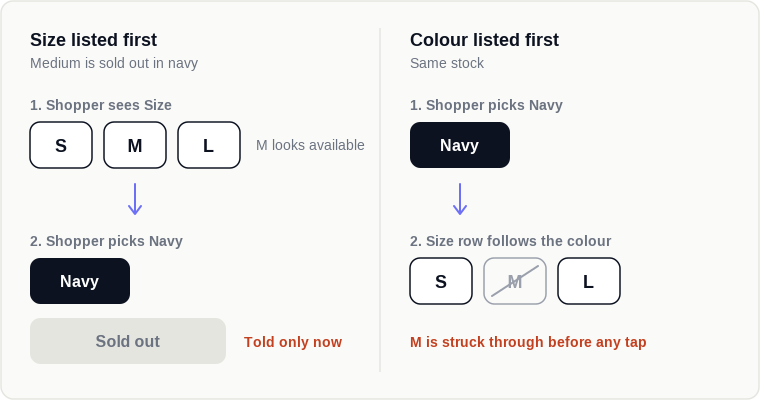
- Where the shopper finds out: on the product page, before the cart. The size is struck through and the button reads Sold out. Shopify works out whether a size is available from the options the shopper has already picked. If Size comes first, medium looks available as long as any colour has it. A shopper who then picks navy finds out only when the button turns to Sold out.
- The catch: a strikethrough can mean sold out or never made in that colour, and the two often look the same (see the screenshot below). If a colour never comes in a size, say so in the product description (“Navy comes in S–L”). Then shoppers can tell which struck-through sizes are sold out.
There’s nothing to set. A size shows as sold out once its tracked stock reaches zero, which is Shopify’s default. To strike it through as soon as the shopper picks a colour, put Colour first:
- Open the product in Products.
- Move Colour above Size. In the Variants section, drag Colour up by its handle (Shopify’s steps).
- Click Save.
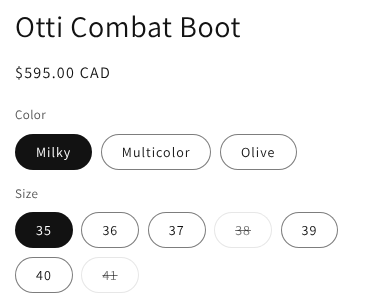
If your theme only greys out a sold-out size, ask your developer to add a strikethrough or a “Sold out” label. Colour alone isn’t enough: WCAG 1.4.1 (Level A) says colour can’t be the only visual way to show information.
Add a restock signup that works per size, not per product: a shopper waiting for medium doesn’t want to hear about small being back in stock. If you use an app, pick one you add as a block in the theme editor, with no code edits. It should load only on product pages, so the rest of your store doesn’t carry its script.
If a size is gone for good: unpublish it
- When it fits: you’ve stopped making or stocking it. That’s Shopify’s own example: stop selling a variant but keep it in your admin.
- Where the shopper finds out: on the product page. Shopify says an unpublished variant “is hidden from being displayed”, but when we tested, it still showed in the size picker, struck through. If that happens on yours, add a line to the description (“Small in navy is discontinued”) so shoppers know it isn’t coming back.
- The catch: you unpublish by hand, per variant, in each channel or catalogue. You can’t set a publishing date for a single variant. If you unpublish every variant from a channel, the product disappears from it. Shopify’s stock-based hiding hides the whole product. It works through a collection rule or a template in Shopify Flow, Shopify’s automation app. Use it only when every size is gone.
- Repoint your links. Send any ad or shopping-feed link for this size to the product page, so those shoppers don’t land on a size they can’t buy.
- Open the product in Products.
- Open Manage publishing. In the Variants list, click the grey pill in the Publishing column.
- Turn off the channels. Switch off each sales channel or catalogue the size shouldn’t appear in. The window lists Sales Channels, Agentic and Catalogs separately.
- Click Done, then Save.
The bulk editor does the same for many variants at once. Afterwards the product’s admin page shows Excludes some variants, so you’ll see a size is off sale when it’s time to republish.
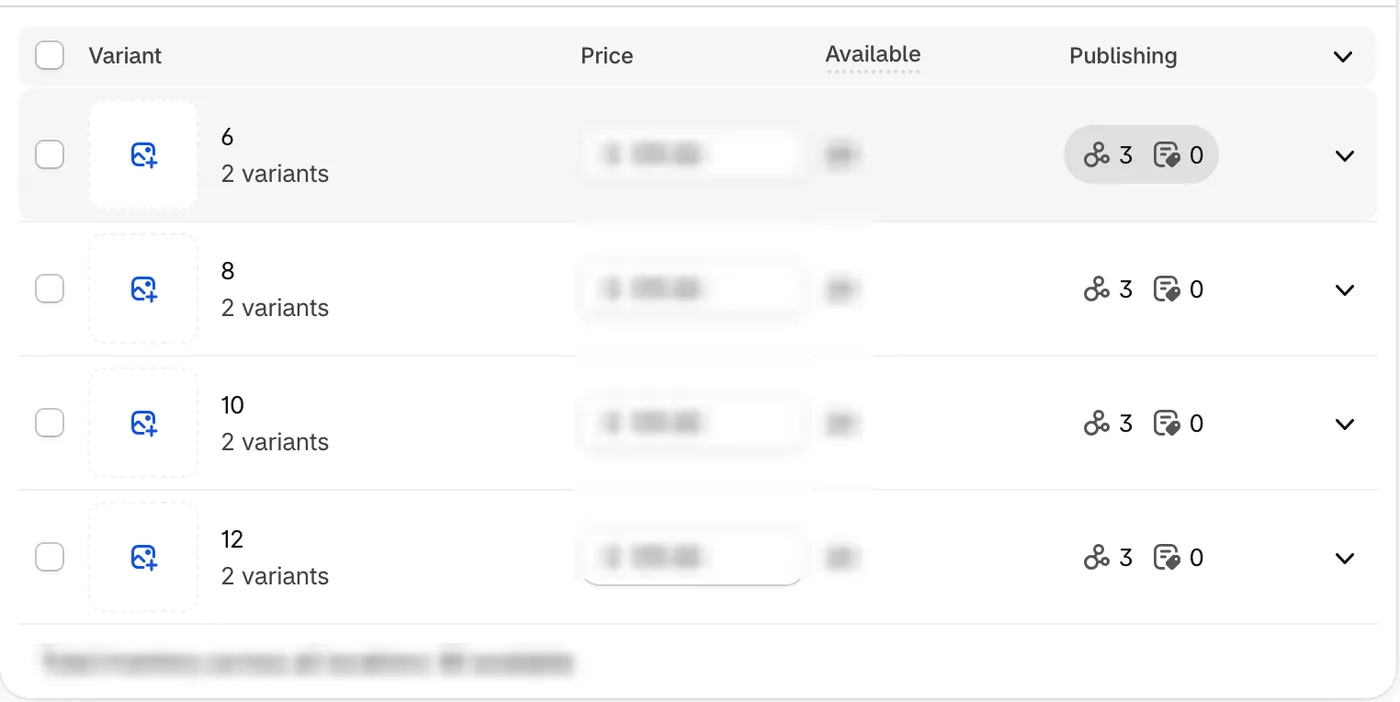
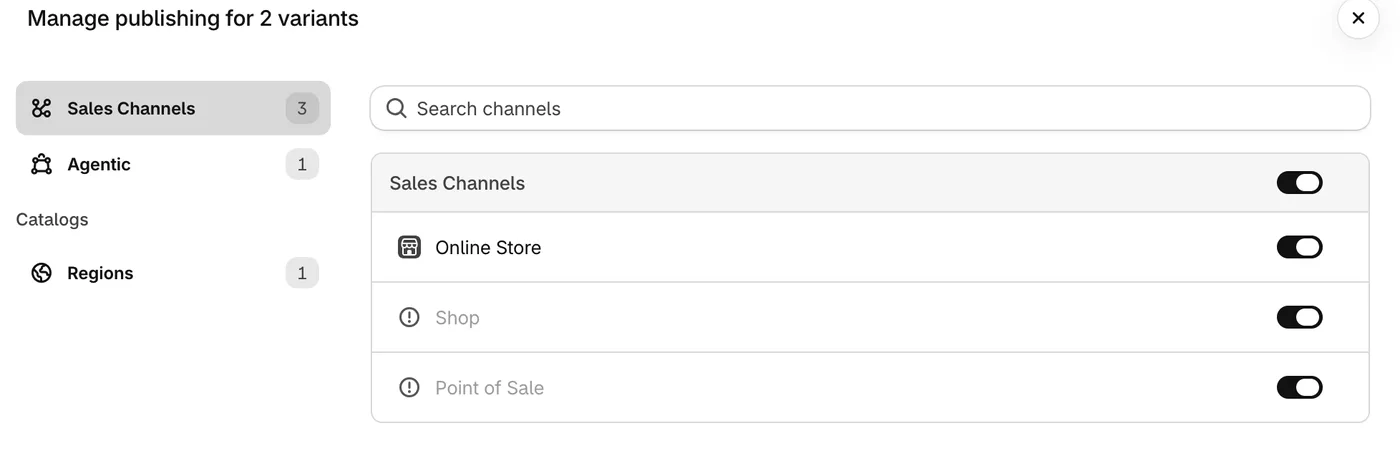
A hidden size can’t tell the shopper it’s coming back.
Unpublishing is a poor fit for a size you expect to restock. Someone has to remember to republish it, and until then nothing on the page says medium is coming back.
If a size is made to order or due on a date: keep selling it
- When it fits: you can promise a ship date, as with a pre-order, a made-to-order size or a delivery due on a known date.
- Where the shopper finds out: only from you. Shopify treats a size you keep selling as available, so it goes through the cart and checkout like a size in stock. Without your notice, nothing tells the shopper it isn’t in stock. If your page has a stock line, it might even say “In stock”.
- The catch: selling stock you don’t hold without telling the shopper first is poor service. Before you turn it on, put two things where the shopper decides: the date it ships, and what happens if it doesn’t arrive by then. If you can’t promise both, leave the size crossed out.
- Write the notice. Add it to the product description: “Large in navy is made to order and ships in 10 days. If it’s late, we’ll refund you or you can wait.”
- Check it on your phone. It should sit above the add-to-cart button. If it doesn’t, ask your developer to show it beside the button.
- Open the size. In Products, open the product and click the size in its Variants list.
- Turn on Track quantity in the Inventory section.
- Choose Continue selling when out of stock, then click Save.
If each size ships on a different date, one line in the description won’t cover it. Look for an app that sets the date per variant, shows it on the product page and in the cart, and records it on the order.
Check each size again when its stock changes. A size that’s coming back is gone for good once the supplier drops the colour.
A CRO audit checks every product page a shopper touches, size by size, and ranks the fixes.
Shopify out of stock: why a size shows sold out
Shopify can show a size as sold out when you have it in a stockroom.
- Tracked stock at zero or below, with Continue selling when out of stock off. That’s the default. The shopper finds out on the product page.
- Stock only at a location that doesn’t fulfil online orders. Shopify counts stock only at locations that fulfil online orders, and shows the item as out of stock on your online store. The shopper finds out on the product page.
- No stock that can ship to the shopper. Shoppers can only complete checkout for products in stock at a location that delivers to their shipping zone. Stores created after April 2024 show a product as out of stock when it can’t be shipped to the shopper. Older stores that haven’t turned on fulfillable inventory choose between Show only fulfillable inventory and Show all products. With Show all products, the shopper finds out at checkout. If you don’t ship everywhere you sell, say where you ship on the product page.
- An unpublished variant, hidden from that sales channel (publishing variants) or struck through, as it was when we tested. The shopper finds out on the product page.
- No stock for the shopper’s market. Since 20 January 2026, checkout counts only stock at locations that can fulfil the buyer’s market (changelog), so the shopper finds out at checkout.
The location rule trips up stores with a shop and a warehouse. If the warehouse fulfils online orders and has none of a size, the size shows as sold out online, even when the shop has six on the shelf. Move stock to the warehouse, or let the shop’s stock count:
- Check your order routing first. The shop will start receiving online orders, so make sure its staff can pack them.
- Open the shop in Settings > Locations.
- Turn on Use inventory at this location to fulfill online orders in the Fulfillment section.
- Click Save.
How do I find every sold-out size in Shopify?
Use the Available column, which is the stock you can sell. Don’t use Shopify’s inventory reports: since 1 October 2026 they count On hand, which includes units committed to orders.
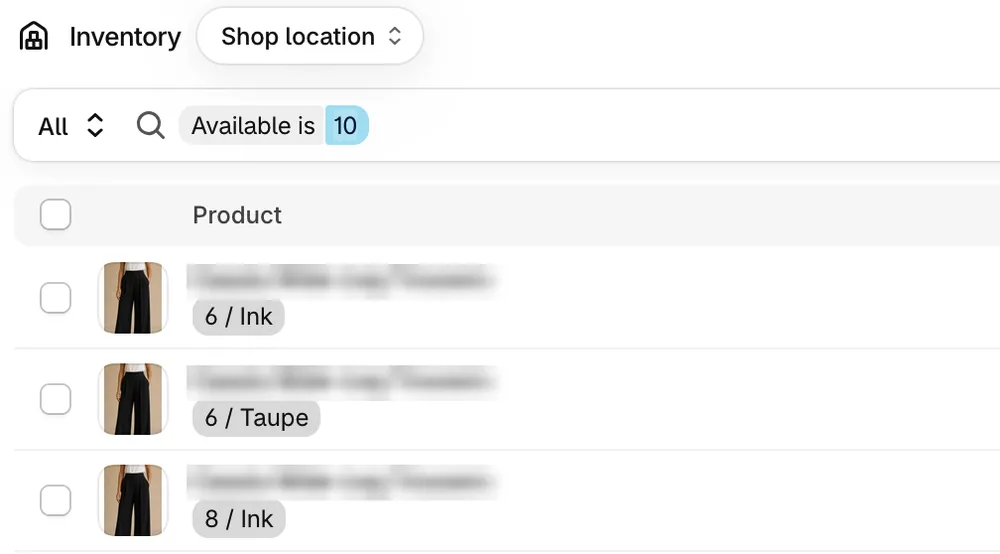
- Go to Products > Inventory.
- Pick a location that fulfils online orders from the drop-down at the top of the page.
- Read the Available column and note each size at 0 or below.
- Repeat for each location that fulfils online orders. Add up each size’s Available across them. If the total is 0 or below, the size is sold out online.
- Give each sold-out size its state. Coming back, no date: leave it crossed out. Gone for good: unpublish it. Made to order or due on a date: add the notice, then keep selling it.
How to tell the choice was right
Shopify records sales for each variant. But it counts product views per product, and its conversion funnel covers the whole store. So judge each choice by the size’s own sales:
- Coming back, no date: once it’s back in stock, the size takes the same share of the product’s sales as before it ran out.
- Gone for good: the product sells as much in total after the size goes.
- Made to order or due on a date: orders for the size get cancelled or refunded no more often than the product’s other sizes. If they’re cancelled more, leave it crossed out instead.
Checklist
- Available read in Products > Inventory for every size, at every location that fulfils online orders
- Stock moved to those locations from any location that doesn’t fulfil online orders
- Each size at zero given one state: coming back with no date; gone for good; or made to order or due on a date
- Colour placed before Size, so a size sold out in one colour is struck through before the shopper taps it
- Ad and feed links for an unpublished size pointed at the product, and a “discontinued” line in the description if the size still shows
- A ship date, and what happens if it’s late, on the product page before any size you keep selling at zero
A CRO audit goes through your size pickers and stock states on the phones your customers use, and ranks what to change first.

A collective of ecommerce veterans with 15+ years across marketing, development and UX. We audit stores, coach teams and build tools for Shopify merchants.