
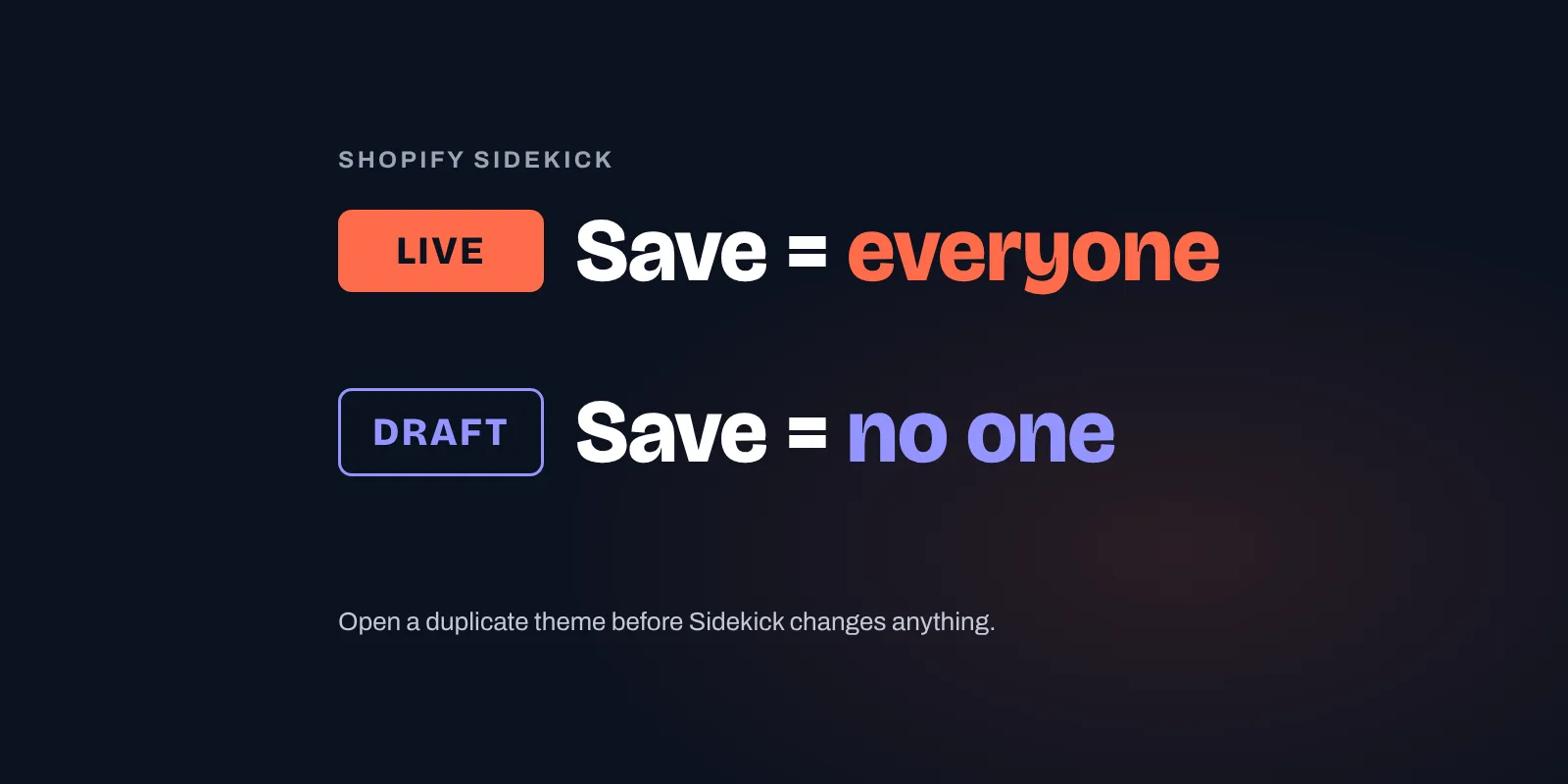
Shoppers see only your live theme, but Sidekick changes whichever theme you have open in the theme editor, published or not. So open a copy of your theme before you ask it for anything. Shoppers won’t see what it changes until you publish the copy.
Shopify Sidekick is the AI assistant in your admin
Shopify Sidekick opens as a floating chat at the bottom of every page in your admin, and you talk to it in plain words. Ask it a question about your store and it answers; ask for a change and it prepares the change for you. On a phone you’ll need the Shopify app, because the assistant isn’t available in a mobile browser.
Every staff member can use it, but it does only what their own admin permissions allow. The permission worth checking is the one for new theme blocks. Each block the assistant codes goes into your theme as a new file of code. Your store’s owners and administrators can ask for one, and other staff need the Edit code permission, so check which of them have it.
The assistant can change your theme, products and discounts, with your approval
Sidekick can change much of what you manage in your admin, but none of it goes through until you approve it. Where the change is decides how you do that:
| Where | What it does | How you approve it |
|---|---|---|
| Theme editor | Changes settings, sections and blocks | Click Save |
| Canvas | Redesigns templates and builds blocks | Click Publish or Update |
| Products, policies and other forms | Fills in fields | Click Save |
| Orders | Edits the order | Click Update order |
| Discounts, customer segments | Creates them | Review each one before it takes effect |
| Checkout | Points you to the setting | Change it yourself |
In the theme editor, the assistant works with what your theme already has: it adds only the sections and blocks your theme includes. When the block you want isn’t one of them, it can code a new one and add it to your theme as a new file. Editing the code your theme already has is another matter. Shopify doesn’t document it, so don’t count on it.
On a product, its changes are easy to spot, because it highlights the fields it fills in and you can read them before you save.
Sidekick comes with your plan, and its limits aren’t public
Your plan includes Sidekick, but what you get from it varies, because its features and usage limits depend on your plan. The limits themselves aren’t published.
Where you’ll notice the difference is in two features. Building custom apps for your store needs Grow, Advanced or Plus, while coding new theme blocks works on every plan except Starter.
Your theme is the easiest place to check a change before you approve it
Since Sidekick can’t change your store without your approval, the time to check its work is before you give it. Your theme makes that easiest, because you can try the change on a copy that shoppers can’t see.
On your live theme, Save is when shoppers see the change
Which theme you have open decides what Save does. At the top of the theme editor, the label beside the theme’s name reads Live or Draft, and it tells you whether shoppers see the theme you’re about to change.
On your live theme, a change waits until you click Save, and then every shopper sees it. Undo works only before you save, so a change you missed stays on your store until someone notices it and reverses it.
On your live theme, Save is the moment every shopper sees the change.
You also can’t point the assistant at another theme from the chat. A message can tag a product or an order (type @ and its name), but not a theme. To have it work on a copy, you open the copy.
Before you ask for a theme change, open a copy
A copy of your theme is one that shoppers can’t see: it waits under Draft themes until you publish it. Before you make one, check there’s room, because your store holds up to 20 themes. If yours is full, delete an old one first, and pick one you won’t need again, since deleting a theme is permanent.
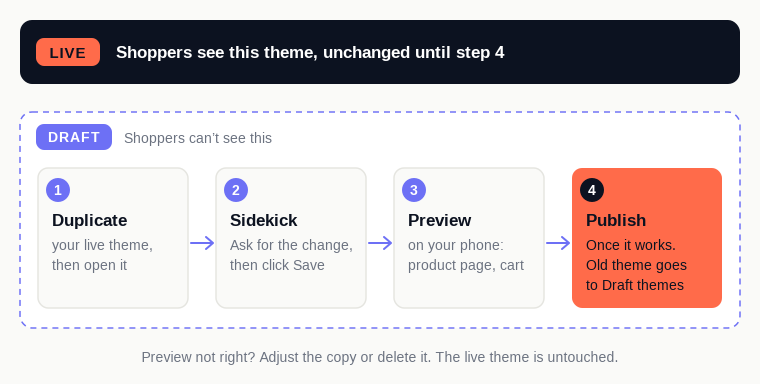
- Duplicate your live theme. Go to Online Store > Themes, open the actions menu beside your live theme and click Duplicate. Do it just before you ask for the change, because anything you edit on the live theme afterwards is missing from the copy, and publishing the copy would take those edits off your store.
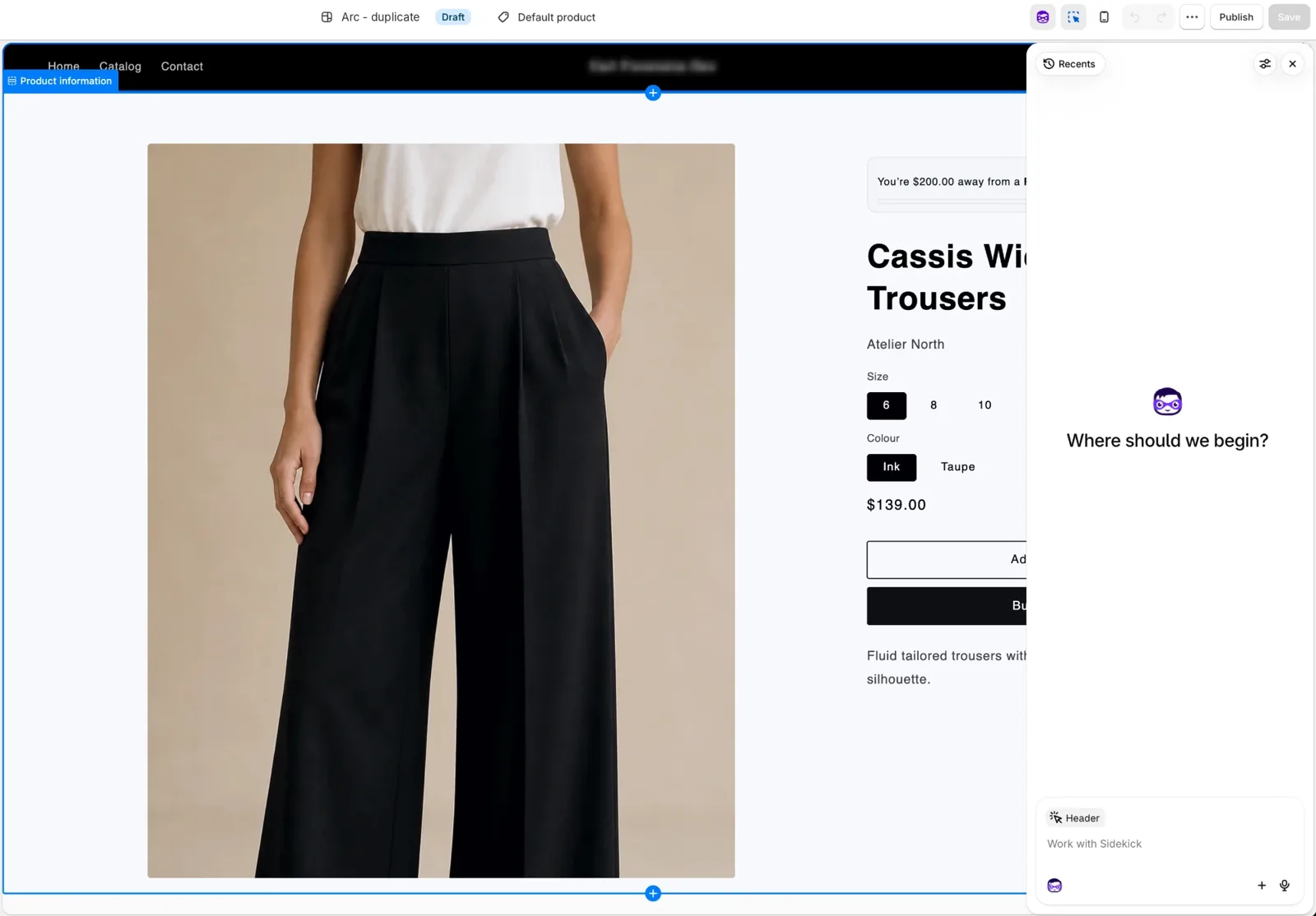
- Open the copy. Under Draft themes, click Edit theme next to it. The label beside its name at the top should read Draft, which means shoppers can’t see your changes.
- Ask Sidekick for the change. In the theme editor, open the assistant from its button in the top bar, not the chat at the bottom of your admin, and describe what you want. Then look at the result in the editor while you can still undo it.
- Click Save. On the copy, Save keeps the change where shoppers can’t see it.
- Preview the copy. Go back to Online Store > Themes, open the copy’s actions menu under Draft themes and click Preview. If your store uses Cloudflare and the preview shows your live theme instead, that’s almost always Cloudflare caching, so turn off caching in Cloudflare for requests to Shopify and preview again.
- Open the preview on your phone. Click the link icon in the preview bar to get a link to the preview, and open it on your phone, since that’s where most shoppers will meet the change. The link expires after 2 days, so get a new one if you come back later.
- Check the product page and the cart. Look at the change, then tap add to cart and open the cart, because a new block above the price can push the add-to-cart button further down the screen. If it does, move the block below the button on the copy and preview again.
- Publish the copy. On your computer, find it under Draft themes and click Publish. Your old theme moves to Draft themes, with none of its changes lost.
Bring your copy to a coaching call, and we’ll go through it with you on a phone before it goes live.
In Canvas, nothing reaches shoppers until you publish
Sidekick also works on your theme in Canvas, a separate workspace in early access where you design your theme with it. Canvas works only with themes made by Shopify and custom themes, not with third-party ones. When it launched, Shopify said that included themes from other designers in the Theme Store, so if you bought yours from one, use the theme editor steps above.
Here too, start with a copy: in Online Store > Themes, open the actions menu beside your theme and click Duplicate in Canvas. Because Canvas saves as you go, there’s no Save button, and shoppers can’t see the copy until you click Publish, then Publish theme. Your live theme works differently. Open it in Canvas instead and each change is saved to it straight away, though shoppers see the changes only after you click Update, then Publish changes.
A copy made in Canvas also stands apart from the theme it came from, which means a change to one doesn’t reach the other. Before you publish the copy, check that it has every change you want shoppers to see.
If you need to go back, undo won’t help, because each change Sidekick makes clears your undo history. Ask the assistant to reverse the change instead, or restore an earlier version from Theme history and publish that.
Products and discounts have no copy: read each change before you approve it
A product or discount has no copy to try a change on, so your check comes before the change reaches your store. On a product, that happens when you click Save, and you review each discount before it takes effect. When a request changes several fields, ask the assistant for a before-and-after table before it applies any of them, and you can read the changes side by side.
Read each one the way a shopper will meet it: a product description on the product page, a discount’s amount at checkout. If a change you approved isn’t right, tell the assistant in the same conversation. It keeps the context of what it just did, so you can describe the problem in plain words and ask it to fix or reverse the change. A request won’t always give the same result twice, so check the fix before you move on.
A product description also has a second reader, because AI shopping assistants read it too. Read it once more with them in mind: our guide to what AI assistants read on your store covers what they look for.
Shopify AI toolkit: send theme changes to a draft first
The Shopify AI toolkit connects AI coding tools such as Claude Code, Codex and Cursor to your store, which makes it a tool for people who work in them. If nobody on your team does, stick with Sidekick.
Your AI tool works on your store by running commands in Shopify’s command-line tool, and you decide when each one runs. For your store’s data, the command is shopify store execute, which only reads your data unless it includes --allow-mutations, the option that lets it make changes. Its page describes no dry run, preview, confirmation or undo for that command, so your check comes before it runs. If a command includes --allow-mutations, read what it will change, then decide whether to let it run.
Your theme needs the same care, and the route is the one you’d take with Sidekick: keep the change off your live theme until you’ve checked it. This command uploads the theme files on your computer as a new, unpublished theme that shoppers can’t see:
shopify theme push --unpublishedThe new theme waits under Draft themes, like a copy, so you can check it on your phone and publish it with steps 5 to 8 above. What you turn down is any command with --live, --allow-live or --publish. The first two let the command push to your live theme, and --publish makes the new theme live as soon as it’s uploaded.
How to measure it
Once the change is live, measure it with your add-to-cart and conversion rates, comparing the week before you published the copy with the week after. Our guide to conversion rate shows where to find both. If your store takes few orders, compare two weeks on each side instead.
Until you’ve finished measuring, keep your old theme under Draft themes, because it’s your way back: if both rates fall, publish it again and look at what changed. When only one falls, that rate tells you where to look. A lower add-to-cart rate points to the product page, while a lower conversion rate with a steady add-to-cart rate points to the cart or checkout. Look at that step on your phone, then decide whether to keep the change or go back to your old theme.
Checklist
- A copy of your live theme, made just before you ask for the change, with Draft beside its name in the editor
- The change saved on the copy and checked on your phone, on the product page and in the cart
- The copy published, with your old theme kept under Draft themes until you’ve finished measuring
- Every change outside your theme read the way a shopper will meet it, before you approve it
- Toolkit theme changes uploaded with
--unpublished, never with--live,--allow-liveor--publish - Add-to-cart rate and conversion rate, the week before against the week after
On a coaching call we go through your product page and cart with you, and decide which change to try on a copy of your theme first.

A collective of ecommerce veterans with 15+ years across marketing, development and UX. We audit stores, coach teams and build tools for Shopify merchants.