

Open Settings > Apps in your Shopify admin: a dozen names or more, and one nobody on the team remembers installing.
Each app’s page has an Uninstall app button, so uninstalling a Shopify app takes a click and a confirmation. The hard part is knowing which to remove and what each leaves behind.
The short version:
- Go to Settings > Apps, open the app and click Uninstall app (or choose Uninstall from its menu in the list), then confirm with Uninstall (uninstalling apps).
- Future charges stop, but the current billing cycle may still be billed. Charges billed outside Shopify carry on until you cancel them in the app. Ask for any refund through Get support first (app charges).
- Export any data you can’t get back.
- Uninstalling Shopify Subscriptions deletes your subscription plans, contracts and discounts (Shopify Subscriptions settings).
- Some apps leave code in your theme. Ask the developer how to remove it.
The full checklist is below. Not sure which apps to remove? Start with the next section.
What a spare app costs you
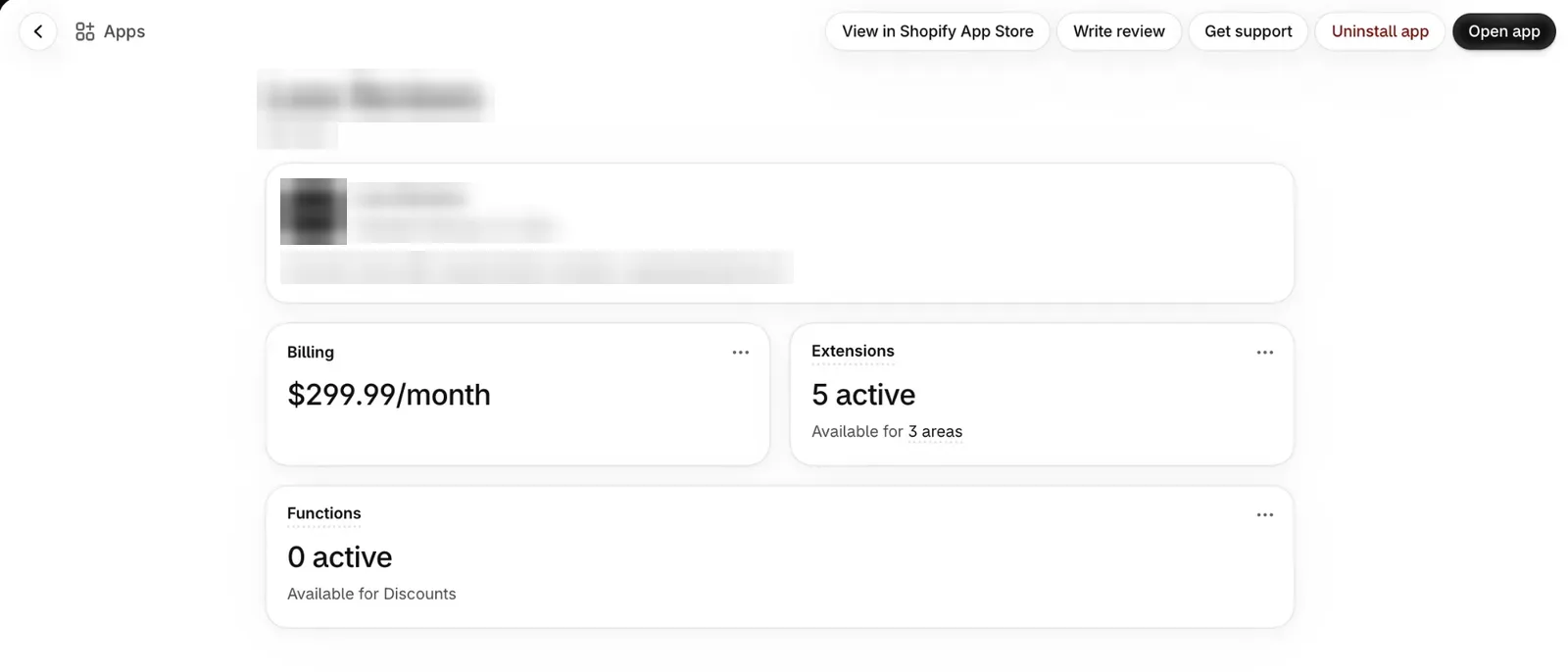
An app can bill a recurring amount plus usage charges, each on its own cycle (Shopify on managing apps). Each app’s page shows its own fee.
The storefront cost is harder to see. Apps built with theme app extensions put their features on your store as app blocks, which you place on a page in the theme editor, or app embeds. An app embed is a switch in the theme editor that turns an app’s storefront feature on or off, and it can load scripts on the pages it targets (Shopify’s developer docs). Shopify caps the score drop for each app, not for 12 together: an app can’t be published in the Shopify App Store if it lowers a store’s Lighthouse performance score by more than 10 points (performance guide).
To see whether an app slowed your store, open Shopify’s speed reports. They chart how fast your pages load and respond for real visitors, and show changes such as app installations on the same timeline. Look for a jump on the day an app went in. They keep 90 days of data, so older installs won’t show.
Decide each app: keep, replace or remove
Open each app’s page in Settings > Apps and answer these:
- What does it cost? The Billing card, which Shopify’s help calls Billing and usage charges, shows the plan and the recurring amount, with an itemised list behind Usage charges (managing apps).
- Is anything using it? Activity and permissions, documented in Shopify’s help on the same page, lists what the app can read or edit. Access the app hasn’t used for 30 days appears under Unused access, for third-party apps only (managing apps). Each app’s page also shows how often the app has touched your store in the last 30 days, counted as Admin API requests (Shopify changelog, 11 March 2026).
- Where does it run? The app page has cards for its extensions, functions and pixels, showing where each is active, such as Checkout or POS. In the theme editor, the App embeds panel lists the embeds you can switch on and off (extending your theme with apps).
- Does Shopify or your theme already do it? Check the table below.
| The app’s job | Shopify’s option | Cost |
|---|---|---|
| Filters and search | Search & Discovery | Free app |
| Product page upsell | Search & Discovery complementary products, with Dawn’s complementary product block | Free |
| Email campaigns | Shopify Messaging | 10,000 emails a month free on eligible plans |
| Signup popups | Shopify Forms | Free app |
| Translation | Translate & Adapt | Free, auto-translates two languages |
| Live chat | Shopify Inbox | Free app |
| Announcement bar | A section in Dawn and Horizon | In the theme |
| Sticky add to cart | Horizon, from version 3.2.0 | In the theme |
Each swap has a catch. Search & Discovery’s complementary products are picked by hand, up to 10 per product. Translate & Adapt translates two languages automatically; past that, translations are manual.
Then decide. Remove it if nothing uses it. Replace it if Shopify or your theme does the job. Keep it if nothing else does, then check what it earns.
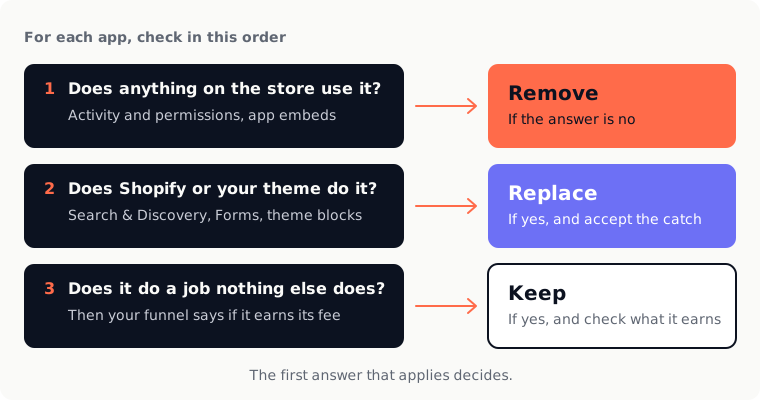
None of the behaviour reports breaks sales down by app, so an upsell or reviews app proves its worth only when you take it off the page.
Shopify can tell you what an app costs. Only your funnel can tell you what it earns.
One stack, worked through
The store in this section is invented. It runs Dawn, and its app fees, savings, weekly rates and old code are made up for illustration; only the native options are Shopify’s own.
| App’s job | Monthly fee | Shopify’s option | Decision |
|---|---|---|---|
| Upsell widget | $29 | Dawn block | Replace, then check |
| Second upsell widget | $49 | Same job | Remove |
| Translation, one language | $18 | Translate & Adapt | Replace |
| Email popup | $15 | Shopify Forms | Replace |
| Announcement bar | $7 | Dawn section | Replace |
| Reviews | $39 | None | Keep |
Each app’s Billing card gave its fee. The two upsell widgets turned up on the same product pages. Dawn’s own complementary product block already did that job.
Five changes save $118 a month, or $1,416 a year. Reviews stay: Shopify doesn’t offer a confirmed replacement, and removing them to find out is a bigger bet than $39 a month.
The upsell swap could cost sales, so it goes in two steps of two whole weeks each, measured in Conversion rate breakdown, with both apps installed until the end. First the second widget’s block comes off the product page. Two weeks later, Dawn’s complementary product block goes in, with complementary products picked in Search & Discovery for the best-selling products, and the first widget’s block comes off.
| Weeks | On the product page | Cart additions ÷ sessions |
|---|---|---|
| 1–4 | Both widgets | 8.1%, 7.9%, 8.3%, 8.0% |
| 5–6 | First widget only | 8.2%, 8.0% |
| 7–8 | Dawn’s block only | 7.9%, 8.2% |
Before any change, the rate moved between 7.9% and 8.3% from one week to the next. Every week after sits inside that range, so both widgets get uninstalled. Had weeks 7 and 8 both come in around 7.5%, the first widget would have been earning its $29: switch its block back on and keep it.
The same store had a countdown timer, uninstalled years ago, that wrote code into theme.liquid. Searching the duplicate theme’s theme.liquid for “countdown” found a line that renders a snippet called countdown-timer. Deleting the line and the snippet on the duplicate, then previewing and publishing it, took the timer’s code off every page.
A CRO audit checks every page between the ad and the order confirmation, and ranks the fixes.
How to uninstall a Shopify app without a surprise
If nothing uses the app, go straight to the steps. For an app you’re replacing and want to check, don’t uninstall yet. Take its storefront part off and leave the app installed: remove its app block from the template in the theme editor, or switch it off under App embeds (extending your theme with apps). If the funnel drops, it goes back on in a minute. The app keeps its own settings, but a removed block’s settings may need entering again. The price is at least one more billing cycle. This checks conversion, not speed: Shopify doesn’t say whether a switched-off embed stops loading its scripts, so judge speed after the uninstall.
For those, once the funnel holds, work through the box.
- Export the data you need. Shopify warns that some apps store data you can’t recover after uninstalling, and reinstalling may not bring back your settings (uninstalling apps).
- Check what depends on it. Automations and integrations that use the app stop working. Inventory stocked at a fulfilment app’s location has to be transferred or deleted first. Uninstalling Shopify Subscriptions deletes the subscription plans, contracts and discounts made with it (Shopify Subscriptions settings).
- Ask the developer what it added, and where. Note how it reaches the storefront too: if it shows something to shoppers but its app page has no Online Store extension card and it has nothing in App embeds, assume its code sits in your theme files (our rule of thumb).
- Settle the money first. Cancel any charges the app bills outside Shopify in its own settings, because uninstalling doesn’t stop them. Ask for any refund before you uninstall, through Get support on the app’s page in Settings > Apps: refunds are the developer’s decision, not Shopify’s (app charges).
- Duplicate your live theme. In Online Store, open the theme’s menu and choose Duplicate (duplicating a theme). You’ll want a copy to compare with, and to fall back on.
- Uninstall. Go to Settings > Apps, open the app’s page, click Uninstall app (or open the app’s menu in the list and choose Uninstall), add a reason if you like and confirm with Uninstall.
- Check the theme. App blocks are removed automatically, and app embeds are blocks too; open App embeds to confirm. For an app whose code sits in your theme files, search the duplicate (see the next section).
- Check the next bill. Future charges stop, but the current cycle may still be billed, and a charge already raised for your next invoice stays on it unless the developer credits it.
“Delete” isn’t an option for Shopify App Store apps; it applies only to custom apps, which you uninstall first and can’t recover afterwards (uninstalling apps).
Does uninstalling a Shopify app leave leftover code?
If you don’t edit code, send this section to your developer, or ask the app’s developer to remove what it added before you uninstall.
Shopify’s docs separate three cases; only one needs you.
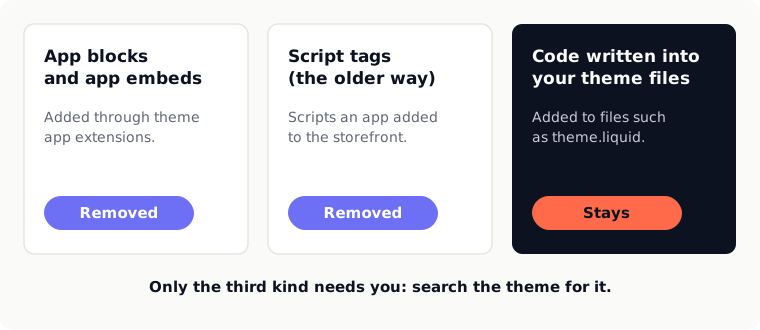
App blocks and app embeds. Shopify says an app’s blocks are “automatically and entirely removed” from your themes when you uninstall it (Shopify’s developer docs). App embeds are blocks too; open App embeds to confirm they’ve gone.
Script tags, an older way for apps to add scripts, are removed when the app that created them is uninstalled (ScriptTag reference). Shopify stops running them on storefronts on 1 March 2027 (script tag deprecation).
Code an app wrote into your theme files stays, and Shopify’s uninstall page gives no steps for finding it (uninstalling apps). These are ours:
- Work on the duplicate, not the live theme.
- Open its code: in Online Store, open the theme’s menu and choose Edit code (editing theme code). Shopify suggests editing code only if you know HTML, CSS and basic Liquid.
- Search
theme.liquid, the snippets folder and the sections folder for the app’s name, for the web address its scripts load from and for anything the developer told you about. - Copy each snippet’s contents somewhere safe, then delete what you find.
- Preview the duplicate and test the cart and checkout on the preview before you publish it. Keep the theme it replaces until you’ve checked the live store.
A leftover can look like either of these lines, from an invented app:
{% render 'countdown-timer' %}
<script src="https://timer.example.com/widget.js" defer></script>
The first loads a snippet, which you delete too. If you change the wrong thing in a file, open it, select an earlier entry in its Timeline view, choose Restore contents, then Restore. That replaces the whole file. Timeline can’t bring back a deleted file, and assets have no history (editing theme code).
Check your funnel held
Turn on Show annotations in a report and Shopify marks app installs and uninstalls on the chart for you (Shopify changelog, 5 May 2026).
Then compare at least two whole Monday-to-Sunday weeks after the change with at least two before it, all from after 23 September 2026, the date the session measurement update was due to finish rolling out (session measurement update). Look at the step the app touched: for a product page widget, cart additions over sessions. Our post on dividing each funnel step by the one before shows how to read it. The funnel counts sessions, not what’s in the cart, so check sales over the same weeks too.
Our rule for reading it: before the change, note how far the step moved from week to week. A move afterwards that’s smaller than that isn’t a signal. On a store with a few hundred sessions a week the swing is wide, so only a large change is readable; give it four weeks on each side.
After the uninstall, check the speed reports again; they can run up to 36 hours behind.
If a step drops below the weeks before and stays there, switch the block back on.
Checklist
- Each app’s fee read from the Billing card on its page
- Apps with no recent activity, or doing a job Shopify or your theme already does, marked to go
- Data exported, outside billing cancelled and refunds asked for before uninstalling
- A duplicate of the live theme, searched for the app’s name and script address
- Each storefront app switched off first, and uninstalled only after two whole weeks inside the usual range (four on a small store)
- The next bill checked for a leftover charge
A CRO audit checks every page between the ad and the order confirmation, and ranks the fixes by revenue.

A collective of ecommerce veterans with 15+ years across marketing, development and UX. We audit stores, coach teams and build tools for Shopify merchants.