
The code in your welcome email is there to win an order from a new customer. The code in last week’s newsletter is there to bring back a returning customer, and it’s the discount code you suspect returning customers wait for.
Cut codes across the board and both jobs stop. Shopify can tell the two apart: its sales data marks whether each discounted order came from a new customer or a returning one. What it can’t mark is who would have bought anyway. A report shows who used a code, not who needed one.
Split before you decide. Count how many discounted orders come from new customers. When you send returning customers a promotional code, check whether their orders are extra or early. Then decide each job on its own.
Why one switch can’t tell two jobs apart
A welcome code and a newsletter code cost you the same thing: money off the order. But they buy different things. The welcome code pays for a first order. The newsletter code pays for an order from a returning customer.
The discounts we’ve seen on stores we’ve worked with are welcome codes, seasonal discounts and loyalty rewards. Each is aimed at a different group. A welcome code is meant for new customers. Loyalty rewards go to returning customers. A seasonal sale reaches both in the same week and hides which job paid off.
The week you send a promotional code is meant to look busy. We’ll call it a code week. The week after tells you more. If returning customers order less once the code ends, that suggests the code brought their orders forward rather than adding new ones.
A report shows who used a code, not who needed one.
Split your discounted orders by new and returning customers
For each order, Shopify’s sales data records the two facts you need: whether it had a discount, and whether it came from a new or returning customer. The sales schema defines new or returning as “Whether an order came from a customer’s very first purchase (New) or a later one (Returning).” Shopify doesn’t document how it matches a guest checkout to a customer’s earlier orders. So treat New as Shopify’s label, not a head count.
To see both facts together, open Analytics > Reports and click New exploration. Shopify says it’s available on all plans. Open the ShopifyQL editor, the box where you type a query (the editor guide). Paste Query 1 and run it.
Query 1: discounted orders by new and returning customers, week by week
FROM sales
SHOW orders
GROUP BY is_discounted_sale, new_or_returning_customer
TIMESERIES week
SINCE -90d UNTIL today
Each row in the result is one week and one pair: discounted or not (true or false), and New or Returning. The rows marked true and New are discounted orders from new customers. Add them up across the weeks for the 90-day count. The first and last weeks are part-weeks, because 90 days isn’t a whole number of weeks and today isn’t over. Leave them out when you compare one week with another.
The sales schema says one order can produce several rows when a refund or adjustment follows it. So check the total with the Total check query:
Total check: all orders over the same 90 days
FROM sales
SHOW orders
SINCE -90d UNTIL today
The orders in Query 1 should add up to the Total check. We ran both in a Shopify admin and the totals matched. If yours don’t, some orders are counted in more than one row. Read the split as close, not exact.
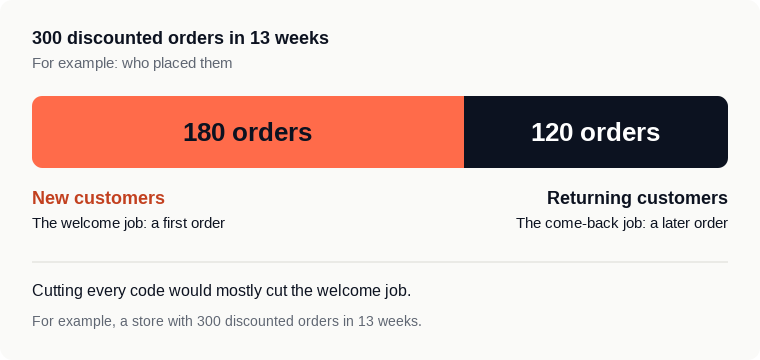
For example, here’s the split for one store over 13 weeks, in round numbers. The store takes 1,000 orders, and 300 of them use a discount. Of those 300, 180 come from new customers and 120 from returning customers.
In the example store, returning customers place 400 orders across the 13 weeks. Here they are by kind of week:
| Kind of week | Weeks | Orders | Per week |
|---|---|---|---|
| Code week | 4 | 160 | 40 |
| Week straight after a code week | 4 | 80 | 20 |
| Ordinary week | 5 | 160 | 32 |
In this example, most discounted orders come from new customers. Cutting every code would mostly cut discounts on first orders. Returning customers order more in code weeks than in ordinary weeks, and less in the weeks straight after. Together, that suggests the code moves their orders earlier rather than adding new ones.
See which codes new and returning customers use
Query 1 tells you how many discounted orders came from each group. Query 2 tells you which codes they used.
Query 2: discounted orders by code, new and returning
FROM sales
SHOW orders
WHERE is_discounted_sale = true
GROUP BY discount_code, new_or_returning_customer
SINCE -90d UNTIL today
When we ran Query 2, each code came back split into new and returning customers. The default Sales by discount codes report doesn’t show this split. It lists orders and sales for each code, but its columns don’t include new or returning.
Look at your welcome code first. If returning customers use it, it’s reaching people it wasn’t meant for. Your sign-up pop-up is one place to check. The pop-up settings cover devices, pages and triggers. They list no setting to hide a form from customers who have bought before. So your pop-up can offer the welcome code to returning customers.
Then read your newsletter code’s New row. Those are first orders. Cut the newsletter code and you cut those too.
To see what each code takes off an average order, divide its Discount amount by its Orders in Sales by discount codes. Our sales drop post shows how.
Bring your split to a coaching call and we’ll work out which job each code is doing for your store.
What the split points to
Find the result that matches your store, then read its section.
| What you see | Where to look first |
|---|---|
| Discounted orders come mostly from new customers | Your welcome code |
| Returning customers order more in code weeks | The weeks after each code |
| Discounted orders are a small, steady share for both groups | What each code takes off an order |
Discounted orders come mostly from new customers
- What it means: your codes are mainly doing the welcome job, so cutting them would change first orders most.
- Where to look: Query 2. Count how many returning customers used the welcome code.
- Next step: keep the welcome code if first orders matter to you, and limit it to one use per customer (see the steps below). A returning customer can still use it once.
Returning customers order more in code weeks
- What it means: returning customers order more in the weeks you send the promotional code. Query 1 doesn’t show whether the code caused that, or whether those orders were extra or early.
- Where to look: Query 1, week by week, with the part-weeks left out. Sort the weeks into three kinds: code weeks, the week after each one, and ordinary weeks (no code that week or the week before). If returning customers order less in the weeks after than in ordinary weeks, that suggests the code is moving orders, not adding them.
- Next step: narrow the code to returning customers who haven’t ordered in 13 weeks, instead of sending it to the whole list.
Discounted orders are a small, steady share for both groups
- What it means: in this period, codes aren’t carrying either group.
- Where to look: the Discount amount and Orders columns in Sales by discount codes.
- Next step: decide each code on what it takes off an order. The split gives you no reason to cut in a hurry.
Narrow who can use a code
You can choose who can use a discount. On a discount’s page, the Eligibility section offers All customers, Specific customers, Customer segments or Markets (managing discounts).
A customer segment is a saved rule that Shopify keeps up to date. The Last order date filter picks customers by the date of their last order. Number of orders picks them by how many they’ve placed (segment filters). Shopify Messaging, Shopify’s own messaging app, can send an email campaign to one segment instead of your whole list.
Welcome codes are harder to narrow. The discounts FAQ says a discount limited to customer segments applies only to existing customers. It says new customers join a segment after their first order is complete. But the page on managing discounts says a segment can target customers who haven’t bought before. The two pages disagree, so don’t rely on a segment to reach first-time buyers. Keep a welcome code to first orders another way: send it in your welcome email, keep it out of the pop-up and limit it to one use per customer. Limit to one use per customer limits each customer to one use, and Shopify doesn’t say how it identifies a customer. It doesn’t stop a returning customer using the welcome code once. None of these steps stops anyone forwarding the code. Treat the limit as a limit on repeat use, not on who gets the code.
- Build a customer segment of customers whose last order was more than 13 weeks ago, with the Last order date filter.
- First, check the code you send returning customers in Query 2. Its New row is first orders, and a segment of lapsed customers leaves first-time buyers out.
- In Discounts, create a new code for the segment. Don’t edit the live one: anyone outside the segment who uses a code from an email you’ve already sent would be rejected at checkout. In Eligibility, choose Customer segments and pick your segment.
- Send the next promotional email to that segment, with the new code, not to your whole list.
- Open your welcome code and turn on Limit to one use per customer.
- Change one code at a time, and note the date you changed it.
How to tell whether narrowing a code helped
Count orders, not sessions or conversion rate. Shopify changed how it counts sessions between 21 and 23 September 2026. It says orders, sales and customer counts aren’t affected.
Run Query 1 again after four or more whole weeks. Compare returning customers’ orders with the same number of whole weeks before the change. If your sales are seasonal, compare them with the same weeks last year too. A good sign: their discounted orders fall, while their total orders hold level with the matched weeks.
On 2 October 2026, Shopify announced that Rollouts can test a discount on a portion of online store traffic. Experiments need the Grow plan or higher. Shopify’s pages describe them as splitting eligible visitors. They don’t mention holding a code back from a customer group, such as half your returning customers. So matched weeks are the test you have. They point you in a direction, but they don’t prove the code caused the difference.
Checklist
- Query 1 and the Total check run, and Query 1’s orders add up to the Total check
- Discounted orders counted for new and returning customers, part-weeks left out
- Your welcome code and newsletter code checked in Query 2
- Returning customers’ orders compared in code weeks, the weeks after and ordinary weeks
- The code for returning customers limited to a customer segment, and the welcome code to one use per customer
- Returning customers’ orders compared over matching whole weeks after the change
On a coaching call we start with your sales strategy and how you’ve marketed your products so far, then work through which codes to keep, narrow or drop.

A collective of ecommerce veterans with 15+ years across marketing, development and UX. We audit stores, coach teams and build tools for Shopify merchants.